

Work in a short loop
Small, checkable rounds beat one giant request.- State the outcome. Say what should exist when the turn ends, in plain words.
- Say what success looks like. Name the check you will make: “I can book a seat in the Preview.”
- Set boundaries. Say what to leave alone: “Don’t add payments yet.”
- Let it test. The agent has its own browser inside the session’s machine. It is told to open your app at laptop and phone sizes and check the page before it reports back.
- Change one thing at a time. Look at the result in the Preview, then send the next focused change.
Say what done looks like
Give the agent a finish line. Each pair below comes from the Harbor Sailing School booking app.A new app
Weak
- Nothing says who books, what they book or what the staff need.
- There is no finish line, so the agent guesses one.
Strong
- Users, data and screens are named.
- “Done means” gives the agent a test to run before it hands back.
A bug: describe the symptom, not the fix
Weak
- It prescribes a cause you haven’t confirmed. If the cause is elsewhere, the agent patches the wrong thing.
Strong
- It says what you did, what you expected and what happened instead.
- The agent can reproduce it, so it looks for the real cause instead of guessing.
A design tweak
Weak
- “Better” means something different to everyone. Expect a redesign you didn’t ask for.
Strong
- Sent with the heading picked in the Preview (see the next section), “this heading” is exact.
- It names one change, the reason for it, and what must not move.
Show it instead of describing it
Pointing beats describing. Each of these puts exact context ahead of your text, so the agent never guesses which button or line you mean.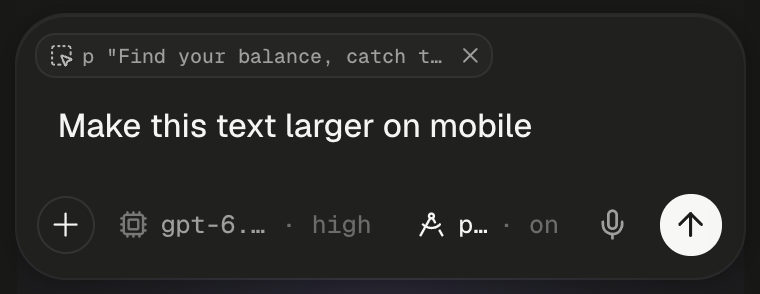
A chip waits above your text until you send.
Let the agent ask
When only you can decide something, the agent asks with a question card instead of guessing. Pick an option, type into Something else…, or choose Skip — let the agent decide to let it go with its recommendation. When the shape of the work isn’t settled yet, switch on plan mode with the plan chip or ⇧ Tab. The agent explores, asks a few questions and proposes a plan. It changes no files until you press Implement this plan.Keep keys out of your messages
Anything you type lands in the transcript. When the composer holds something shaped like a known key, a warning strip names it.Split big jobs
One message with many unrelated asks gets uneven attention. Break it up.Start from an example prompt
These come from the suggestion chips under the composer on the home screen. Click a chip, hover a row to preview its prompt, and click the row to fill the composer. A pick replaces whatever you had typed, and nothing is sent, so edit it first.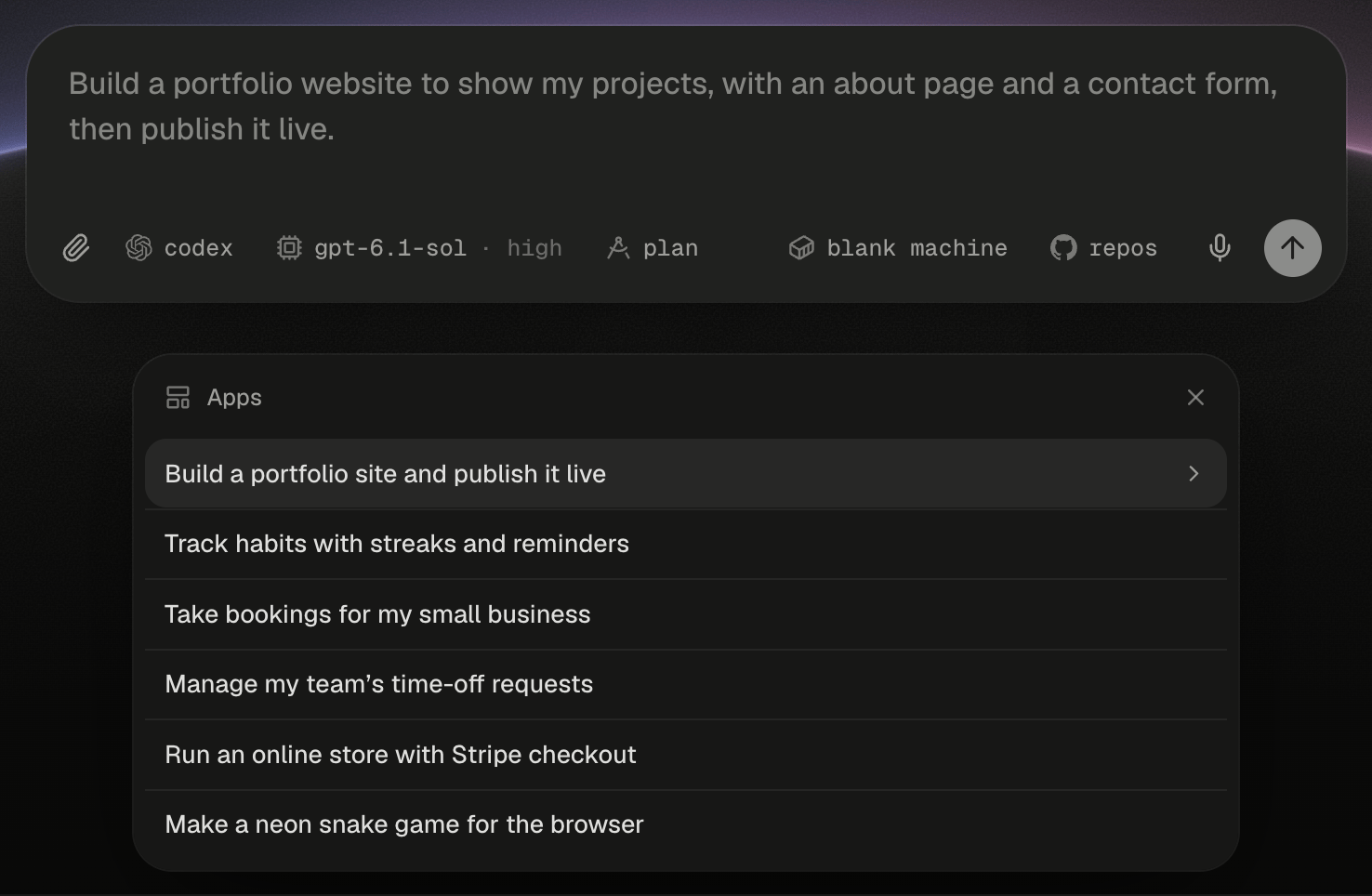
The Apps list opens where the chip row was, and the highlighted row's prompt previews in the composer.
- Apps
- Agents
- Decks & docs
- Images & video
- Data
- Automations
- Research
Next steps
Build your first app
Put the loop to work on a real app, from the first prompt to the Preview.
Point at and draw on your app
Every way to hand the agent an element, a sketch or a selection.
Plan mode and the agent's questions
Agree the approach before any file changes.
Choose the right tool
Plan or build, queue or steer, fork or start fresh.