

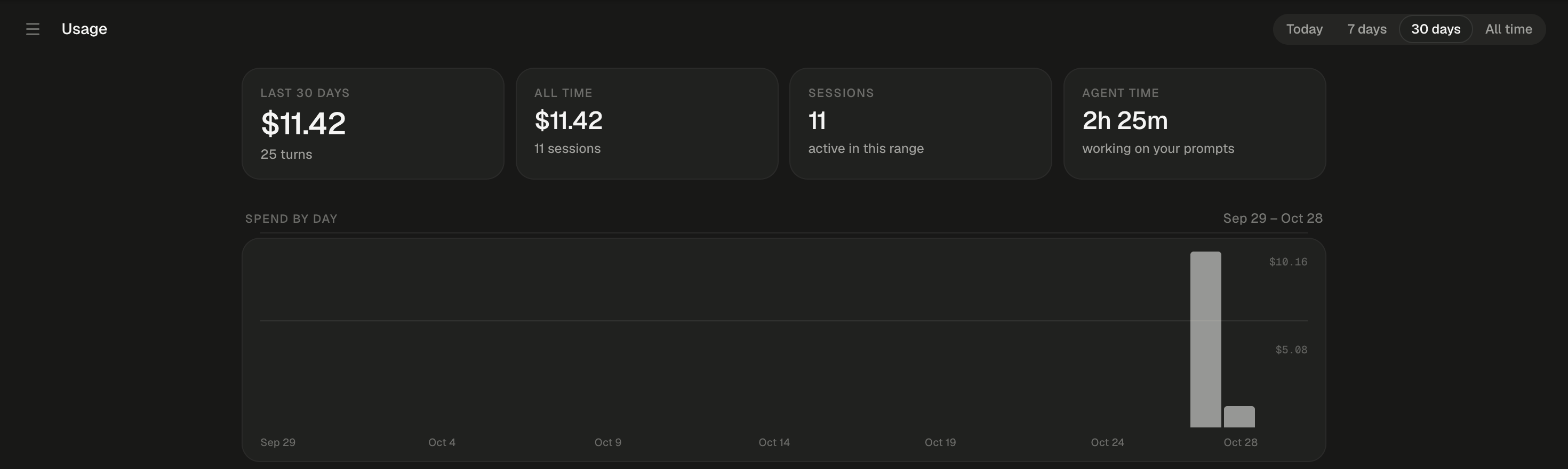
On 30 days, four totals sit above the spend-by-day chart.
Where to see what you’ve spent
You see only your own sessions’ spend. People you share a session with never see its cost.Read the Usage dashboard
Pick a range at the top right: Today, 7 days, 30 days or All time. The dashboard opens on 30 days and remembers your choice in this browser. It refreshes every 15 seconds while it’s on screen.
Some columns appear only in a wide window. Until your first turn, the page reads “No usage yet”.
How is cost worked out?
Alpha records tokens, not dollars, for every turn,/compact and /review, and prices them when you open the dashboard. A model priced later is priced for its past turns too.
Each model’s price comes from the first source that knows it:
Price per 1M tokens reads “$x in · $y out”. Claude rows add a “cache write” price, because Claude charges more to write the prompt cache.
Alpha never guesses a price. A model no source knows counts as $0 and shows unpriced with a warning icon. A notice under the totals names it.
A spend marked ≈ is estimated: “billed from the session’s log before exact per-turn accounting existed.”
Who pays for the agent’s work?
By default the agent runs on your Alpha’s keys, and that is your spend. Sign in with your own ChatGPT or Claude plan and the work bills to your plan instead. This isn’t signing in to Alpha; it only decides who pays.
Work on your plan still shows on the dashboard at its API-price value, in a notice and as a +$x sub chip on each row, but never in a total. A sign-in or sign-out applies from each session’s next message; earlier turns keep the billing they ran under. While you’re signed in to ChatGPT, a Codex model picked by a
vendor/model id still runs on your Alpha’s key and counts as spend.
Run Codex sessions on your ChatGPT plan
1
Open your connected accounts
Open the account menu and choose Sign in with ChatGPT/Claude. In the Use your own plan list, click Sign in on the ChatGPT row.
2
Get a device code
In Run on your ChatGPT subscription, click Sign in with ChatGPT. The dialog shows a link and a code. “The code expires in 15 minutes.”
3
Approve it at OpenAI
Open the link, sign in to ChatGPT and enter the code. The dialog then shows your email and plan.
4
Send your next message
Each Codex session you own switches on its next message, showing “Applying your ChatGPT sign-in…” while its agent restarts. If the switch fails, it says so and keeps running on your Alpha’s key.
While you’re signed in, Codex sessions offer the models your ChatGPT plan includes.
Run Claude Code sessions on your Claude plan
Open Account menu → Sign in with ChatGPT/Claude and click Sign in on the Claude row, or pick Sign in with Claude… from the home screen’s agent chip. Run Claude Code on your Claude subscription offers two ways in.- Paste the code
- Paste a setup-token
1
Start the sign-in
Click Sign in with Claude, then Open to approve on claude.com.
2
Approve and paste the code
Copy the code claude.com shows, paste it into the field and click Submit. The dialog confirms “Signed in — your Claude Code sessions use it from their next message.” Start over gets a fresh link.
If the menu row reads Sign in with ChatGPT with no Claude in the list, or the dialog says “Claude subscription sign-in isn’t enabled on this server”, Claude sign-in isn’t turned on for your Alpha.
Questions about usage
Why is a model's spend $0?
Why is a model's spend $0?
Causes: no price source knows the model, so Alpha counts it as $0 rather than guess.Fix: ask whoever runs your Alpha to add the model to its price list (see Admin dashboard). Past turns are priced as soon as it’s there.
Do deleted sessions still count?
Do deleted sessions still count?
Yes. Deleting a session keeps its usage. It shows in the Sessions table as “Deleted session”, in italics, and can’t be opened.
Which time zone are the days in?
Which time zone are the days in?
Your browser’s. Today and each bar of Spend by day follow the time zone of the device you’re looking from.
Does work on my own plan count toward a session's spend cap?
Does work on my own plan count toward a session's spend cap?
No. If your Alpha caps what one session can spend on its keys, work on your own plan never counts toward it.
Next steps
Choose the agent and model
The model a session runs sets the price per 1M tokens its turns are billed at.
Your account and settings
Everything in the account menu, from Settings to Send feedback.
Admin dashboard
Admins only: every account’s spend in one Usage tab, priced the same way.
Limits
How long a turn can run and how big messages and uploads can be.