

A session is one piece of work
A session is a conversation with the agent plus everything it built. Sending your first prompt from the home screen creates it. It lives at a permanent address,/s/{code}, which is also its share link.
Each session runs one agent, Codex or Claude Code, picked when you start it. The session keeps that agent for life, so to use the other one, start a new session. Sessions are isolated, so several can work at once.
What happens when you start a session
Deep dive: the boot, the name, and what to do if the first send fails.
Every session has its own machine
The session’s machine is a small Linux computer that belongs to that session alone. The agent installs packages and runs your app there.
A setup starts the machine with your repositories already cloned and installed.
Inside a session's machine
Deep dive: the tools and folders the agent finds there.
A turn runs on Alpha’s servers, not in your tab
A turn is one run of the agent on your message. Alpha runs it on its own servers and streams it to your tab, so closing the tab, or the laptop, never stops the work. Reopen the session and the transcript catches up. One turn can run for up to 48 hours (default). A message you send while a turn runs is queued for the end of the turn, or steered into the running turn. Account menu → Settings → New messages picks which; the default is Queue.Queue, steer or stop
Deep dive: when to steer, when to queue, and what stopping keeps.
Machines sleep and wake
A machine sleeps when nobody needs it. Once no Alpha tab of yours has been visible for about 30 minutes, each of your sessions with nothing running goes to sleep: Alpha saves its memory and disk, then lets the machine go. Opening the session wakes it in a few seconds, with every file, package and running server as you left it. Work keeps its machine until the work ends: a turn (even one waiting on your answer), a publish, an eval run or a routine run. While you’re away, only work wakes a machine. People you shared the session with don’t wake it or keep it awake.Sleep, wake and reset
Deep dive: what to do if a machine won’t come back.
The workspace shows the machine
The workspace is the panel beside the chat: your window into the machine. Nothing is switched on until it’s needed. The Preview opens by itself when the agent starts a server, and Database and Auth arrive when the agent switches them on. To switch a service on yourself, or bring back a tab you closed, use the + menu. The files belong to the agent, so the viewers are read-only. To change something, ask, or point at it in the Preview with Select.The workspace
Deep dive: every tab and how tabs are remembered.
What leaves the machine
The machine is private to its session. Work leaves it in these ways:Who can see what
Every session has one owner, who can share it with viewers. Admins can open any session as a viewer.Share a session
Deep dive: private, anyone with the link, or specific people.
Find your way around the workbench
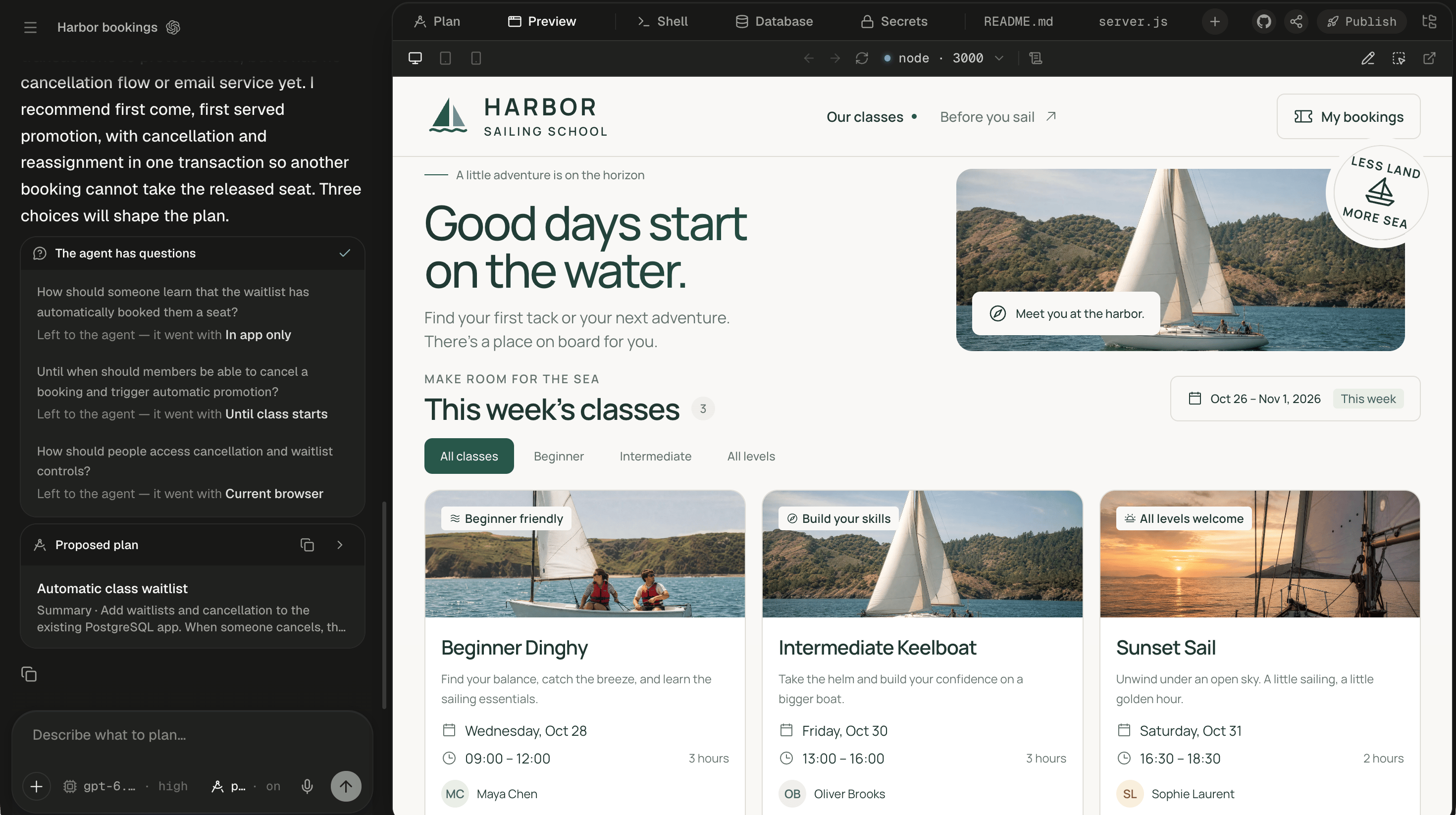
One session: the chat on the left, the workspace and its Preview on the right.
- Sidebar: New session, Search, Published, Skills, Routines, Integrations, your sessions, and the account menu at the bottom. When it’s collapsed, as in the picture, the menu button at the top left opens it.
- Session header: the session’s title, its agent and its cost so far. In a narrow chat column, as here, the agent shows as its mark alone and the cost is hidden.
- Transcript: the agent’s messages, commands and edits as they happen. See Follow the agent’s work.
- Composer: where you write; its chips set the model and plan mode. See The composer.
- Workspace tabs: the Preview, the services you’ve switched on, open files and the + menu.
- Files panel: the
/workspacetree, opened with Show files. - Share and Publish: at the top right, beside GitHub. Let others watch, or have the agent publish the app.
If you don’t see Publish, or a choice between Codex and Claude Code on the home screen, it isn’t turned on for your Alpha.
What the key terms mean
Next steps
Build your first app
About 10 minutes from one prompt to a booking page at its own https address.
Prompt Alpha well
What to put in a first message so the agent asks less and builds more.
Choose the right tool
Plan or build, queue or steer, fork or new session, share or publish.
Sleep, wake and reset
What to do when a machine won’t come back, without losing the transcript.