

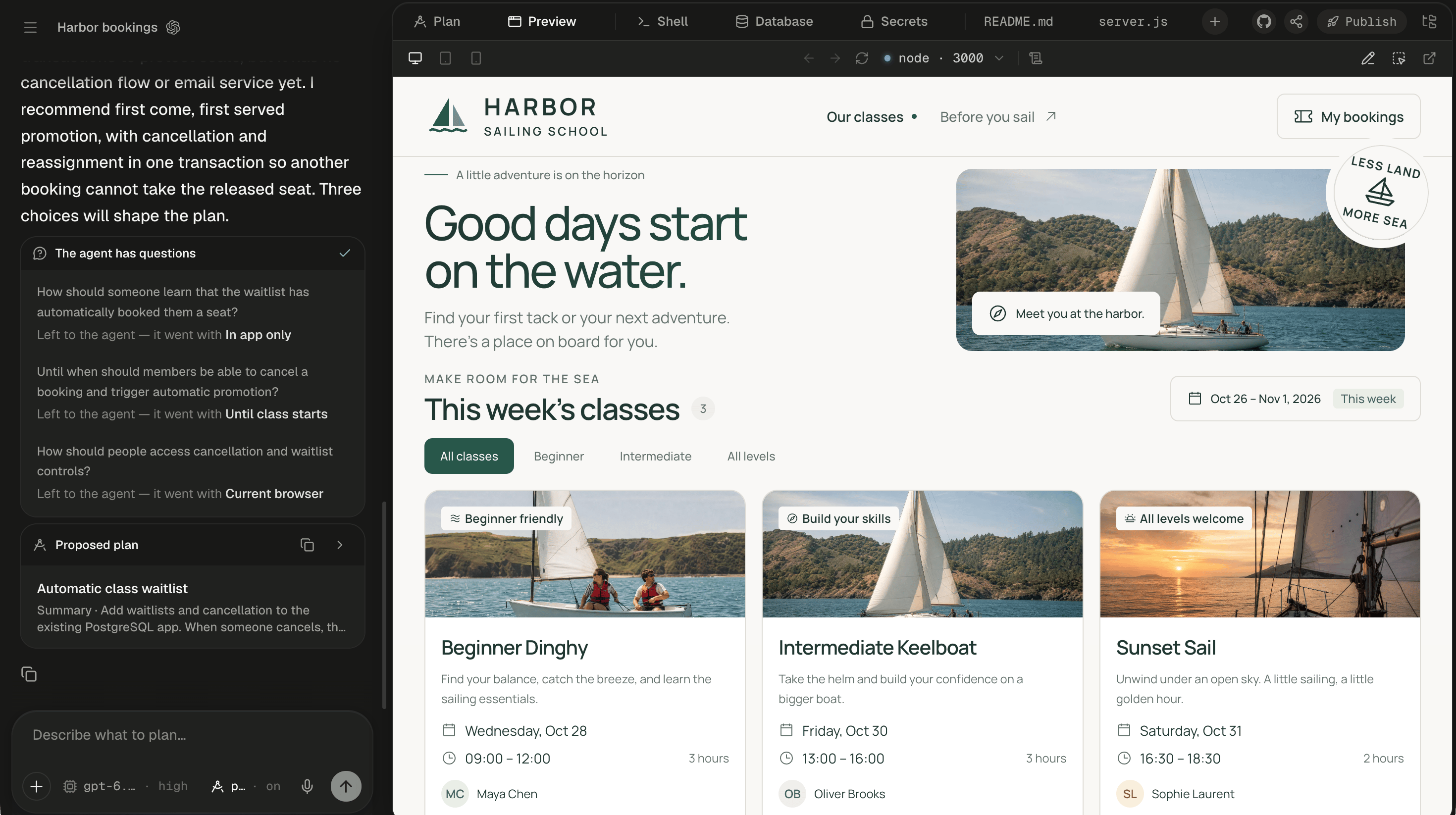
Settings sit on the left of the composer. Voice and send sit on the right.
While the agent works and you’ve typed something, the send button queues or steers instead. Its tooltip names your default, such as “Queue · ⌘⏎ to steer”.
Send a message
Press Enter to send and ⇧Enter for a new line. A session still called “New session” takes its name from your message;/rename changes it later.
The placeholder tells you what the next message will do:
In a narrow composer the longer placeholders are cut to their first half, such as “Describe what to build…”.
One message can be up to 100,000 characters. A longer one is refused with “prompt too large”, so attach long text as a file. If a send fails, the banner says why and your text goes back into the composer.
Attach files
Click + or drag files onto the composer. Each file uploads as soon as you attach it, not when you send, into/workspace/uploads/ on the session’s machine, where the agent opens it with its ordinary tools. Attaching wakes a sleeping machine.
Your message gains one line per file, such as [Attached file: uploads/harbor-classes.csv (12.4 KB)]. Images up to 15 MB also reach the model as pictures, so a screenshot of a bug or a design works. A larger image arrives only as a file.
Each file can be up to 256 MB per file (default). If an upload goes wrong, you see one of these. Troubleshooting covers the rest.
Sent files show as tiles above your message in the transcript. Files and uploads covers the
uploads folder.
Mention files, sessions and skills
Three characters open a list above the composer. Use ↑ ↓ to move, Enter to pick, and Esc to close.
You can also drag a file or folder from the file tree onto the composer to mention it. Backspace at the end of a mention removes all of it. Skills explains what a skill adds.
Point the agent at another session
Type@session: and a word from the session you mean, such as @session:booking. Each hit shows the session’s title, the date it was last active and a line from where the word matched. The search takes one word: a space after it closes the list. The session you’re in is never listed.
Dictate a message
Click the microphone, or tap ⌘., to start dictating. Tap again to stop. To talk only while you hold the keys, hold ⌘. and let go when you’re done. Use Ctrl instead of ⌘ on Windows and Linux. Speak any language; Alpha writes it in English. Text you type while dictating is never overwritten. After you stop, the button spins and its tooltip reads “Finishing…” while the last words settle. A dictation runs for up to 2 minutes, then stops by itself.If you don’t see the microphone, voice input isn’t turned on for your Alpha, or your browser doesn’t support it.
What happens to my unsent text?
Alpha keeps your unsent text in this browser, one draft per session. Sending clears it.
When the composer holds something shaped like a known key, a warning appears above your text: “That looks like an OpenAI API key. Keys typed here land in the transcript — add it under Secrets instead, and the agent gets it as an environment variable.” A GitHub token points you to the GitHub tab instead. The warning never blocks sending.
Pick up a suggested next prompt
Claude Code only After a turn, a Claude Code session may show a chip above the composer holding the prompt Claude Code predicts you’ll want next. Hover it to read the whole prompt. A click replaces anything in the composer and sends the suggestion at once, so read it first. Codex sessions don’t show these chips.Add context from the workspace
Selections and picks from the workspace wait above your text as chips: a selection in the code editor or a viewer (Add to prompt), an element picked in the Preview with Select, or the Preview’s logs (Attach the last lines to your next message). Each chip has an X to remove it. On send, each chip’s context goes ahead of your text, so the agent knows exactly which lines or element you mean. Marked-up pictures from Add to chat arrive as image attachments. Point at and draw on your app shows every source.Next steps
Queue, steer or stop
Send while the agent works: wait your turn, join the running turn, or stop it.
Point at and draw on your app
Pick an element in the Preview or mark up a screenshot, and it lands in the composer.
Slash commands
Every command in the
/ list, for Codex and Claude Code sessions.Secrets
Where API keys belong, so they never land in the transcript.