

sudo, in the same /workspace the agent edits. To look at files without typing commands, use Files and uploads. To browse or edit tables, use the Database tab.
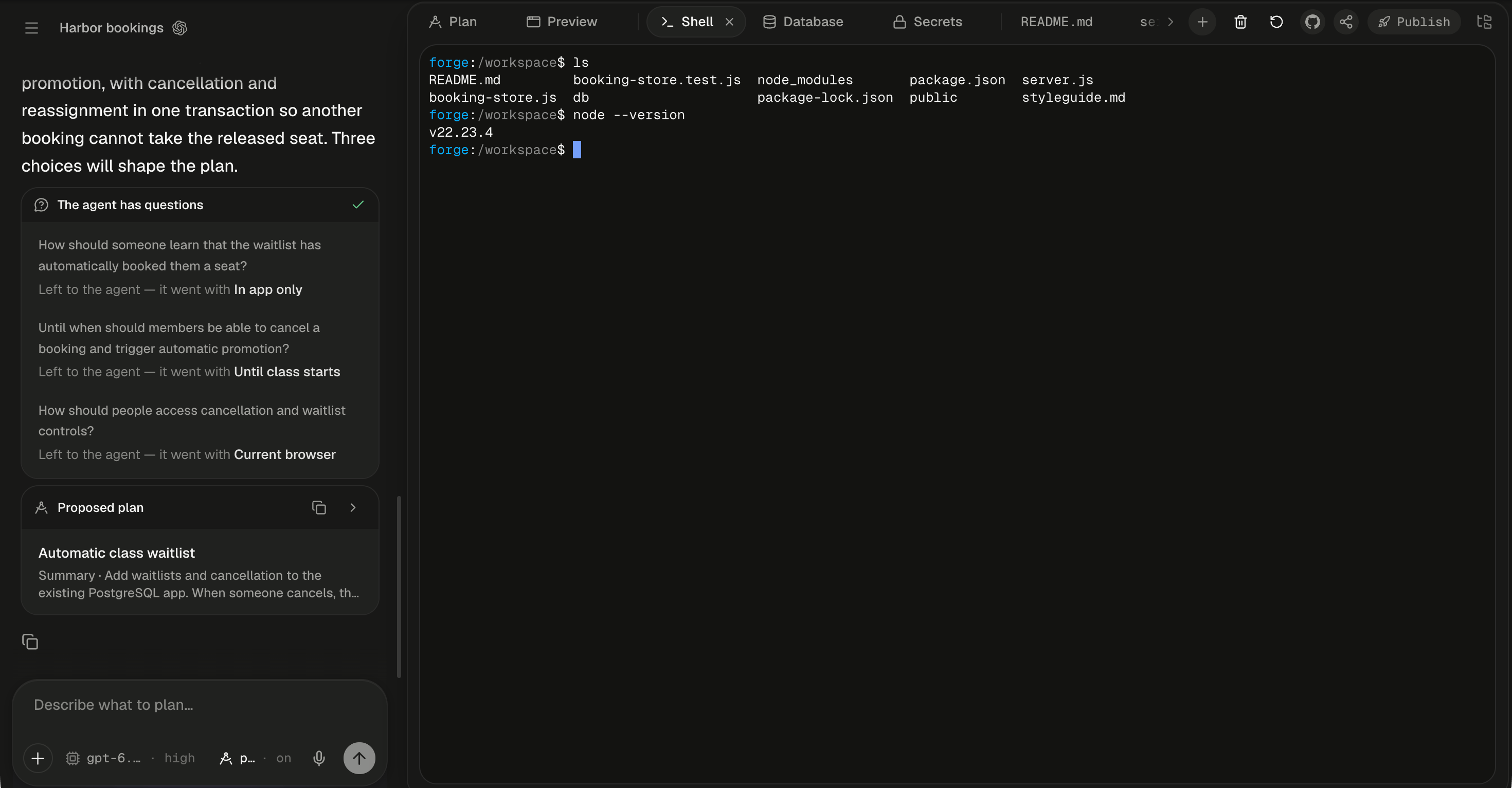
The Shell opens in /workspace, the same folder the agent works in.
Open the Shell
The Shell is off until you open it. The agent never opens it for you.1
Click + at the end of the tab strip
Its tooltip reads “Open a tab, or turn on a service”. If the workspace isn’t showing yet, the same + sits in the chat header.
2
Choose Shell
The Shell tab opens at once. If the session’s machine is asleep, the terminal shows grey placeholder bars while it wakes, then the prompt appears. The Shell wakes a machine only while Alpha is in front of you. A Shell left open in a background browser tab waits, and never wakes it. See Sleep, wake and reset.
The Shell is the session owner’s alone. People you share the session with never see the tab, admins included, and a shared session’s viewers can’t open a terminal on its machine in any other way.
Who am I in the Shell?
You are the agent’s own account, namedagent. It has sudo with no password, so anything that needs root is one sudo away. Your home folder and starting folder are both /workspace, and /workspace/.bashrc runs when the shell starts, so aliases you keep there apply.
Because you share an account with the agent, files you create without sudo belong to it too. The agent can change what you make, and you can change what it makes, with no permission errors either way.
printenv STRIPE_SECRET_KEY and you see the value your app sees.
The environment is read once, when the shell starts. If you add a secret or switch on the database while the Shell is open, click Restart shell to pick it up.
Install packages and query the database
The machine is Ubuntu, and it’s yours to change. System packages install withsudo, because apt refuses every account but root.
psql connects with no arguments. The connection variables are already set, so DATABASE_URL and the plain psql reach the same database as your app and the Database tab.
psql can’t connect, the database isn’t on yet. Ask the agent for it, or choose + → Database, then click Restart shell. See Your session’s database.
What can’t the Shell do?
The Shell sees the machine as the agent does, with a few deliberate exceptions. Alpha keeps its own machinery out of the terminal’s view, and that rules out a handful of commands.
For the full layout of the machine, including what is installed and where, see Inside a session’s machine.
Use it carefully
The Shell has no walls of its own inside the machine. A command you run here can break what the agent is doing, and the agent won’t know why. Deleting files works the same way.rm -rf in /workspace removes the agent’s work as well as yours, with no undo. Commit and push first if you’re unsure. See Branches, commits and pull requests.
Clear, restart or close the Shell
Two buttons show to the right of the tab strip while the Shell is in front.
If the connection drops while the Shell tab is in front, the Shell reconnects by itself. It retries at once after a shell that was working, and backs off up to 15 seconds while a shell can’t get going, for example while the machine wakes. A spinner shows over the scrollback meanwhile. A reconnect opens a new shell beneath the old scrollback, so a command that was running when the connection dropped has ended.
An open Shell doesn’t keep the machine awake. Once you’ve been away for about 30 minutes with no turn running, the machine sleeps like any other, and the shell ends with it. A command running in the Shell doesn’t count as work.
What do the Shell’s messages mean?
Most of the time the Shell prints nothing of its own. These lines come from Alpha rather than from your commands.
More fixes are in Troubleshooting and FAQ.
Next steps
Inside a session's machine
The operating system, the tools already installed and where each kind of file lives.
Your session's database
Switch on PostgreSQL so
psql in the Shell has something to connect to.Secrets
Add the keys your commands read, then restart the Shell to load them.
Sleep, wake and reset
What keeps a machine awake, and how to start over when one is beyond repair.