

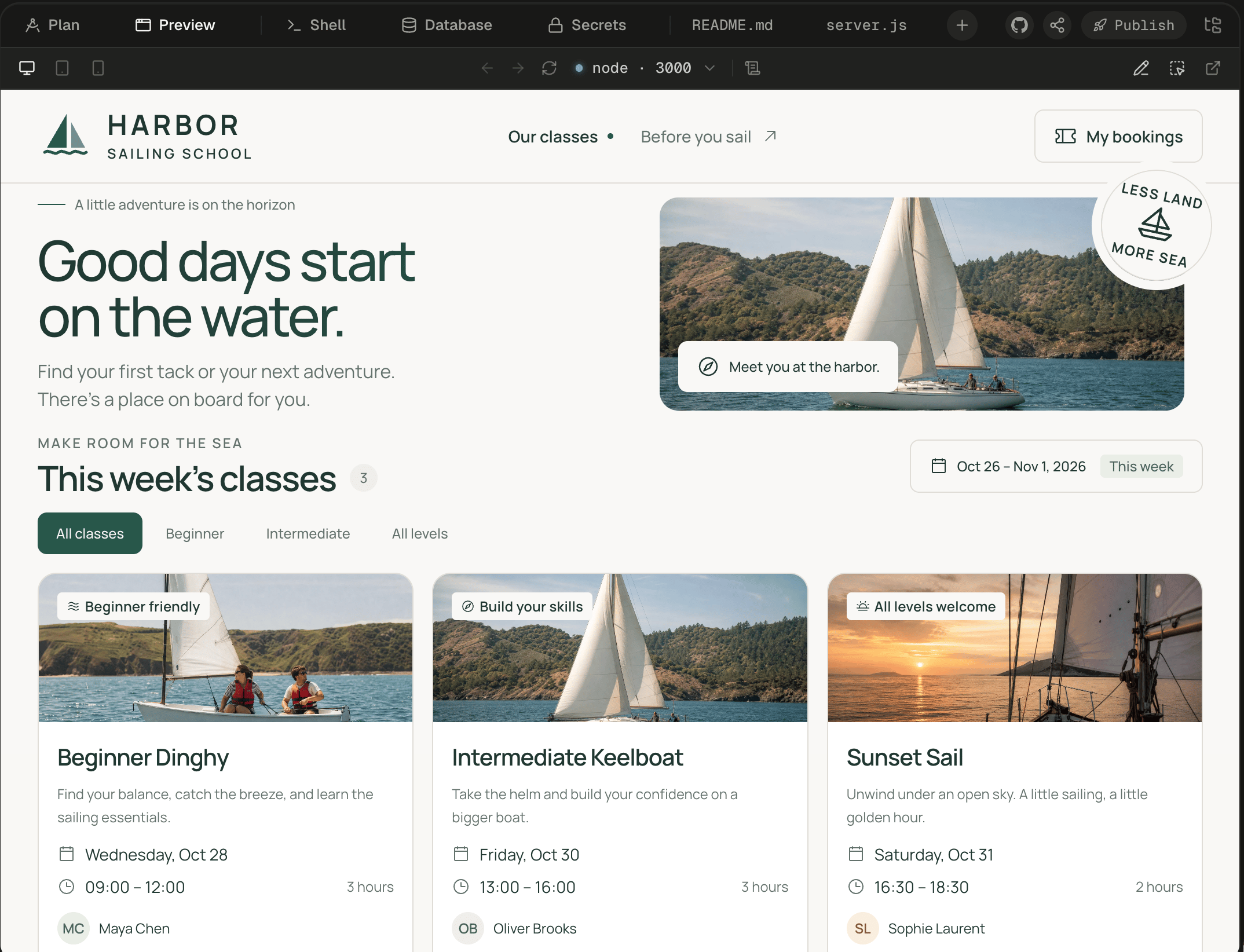
The Preview's toolbar: the device switch on the left, the app's own navigation and port in the middle, and the tools on the right.
How does my app get here?
Alpha watches the session’s machine for anything listening on a port. Once something listens, a Preview tab joins the workspace. When a port’s/ answers with a web page, the tab opens on it. You never switch the Preview on yourself, because it follows what is actually running.
Three rules decide what you see:
If nothing listens for a few seconds, the tab goes away until something does. A restart doesn’t make it blink. Closing the tab with its × only hides it, and the app keeps running. While the app runs, the + menu brings the tab back.
Use the toolbar
The toolbar works like a small browser for your app. Back and Forward move through the app’s own history, single-page routes included, and never move Alpha’s own address bar.
People you share the session with see the same Preview, without Draw, Select or Edit.
Switch ports
When your app runs more than one server, such as a web front end and an API, the port pill lists them all. Ports that serve a page come first, with a check on the one on screen. The rest sit under “Also listening · no page to frame”, each with its reason.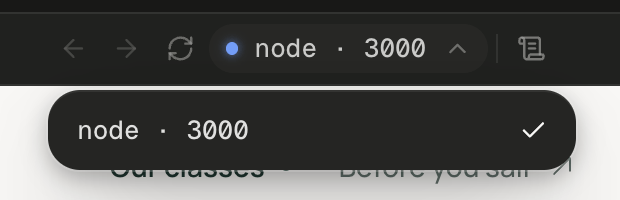
With one server running, the menu holds one port, checked as the one on screen.
Click a row (“Open it anyway”) to frame that port regardless.
Test other widths
Pick Tablet · 834px or Mobile · 390px to narrow the frame to that width. The app’s own layout rules apply, so you see its real phone layout, not a scaled-down desktop. Desktop fills the workspace again.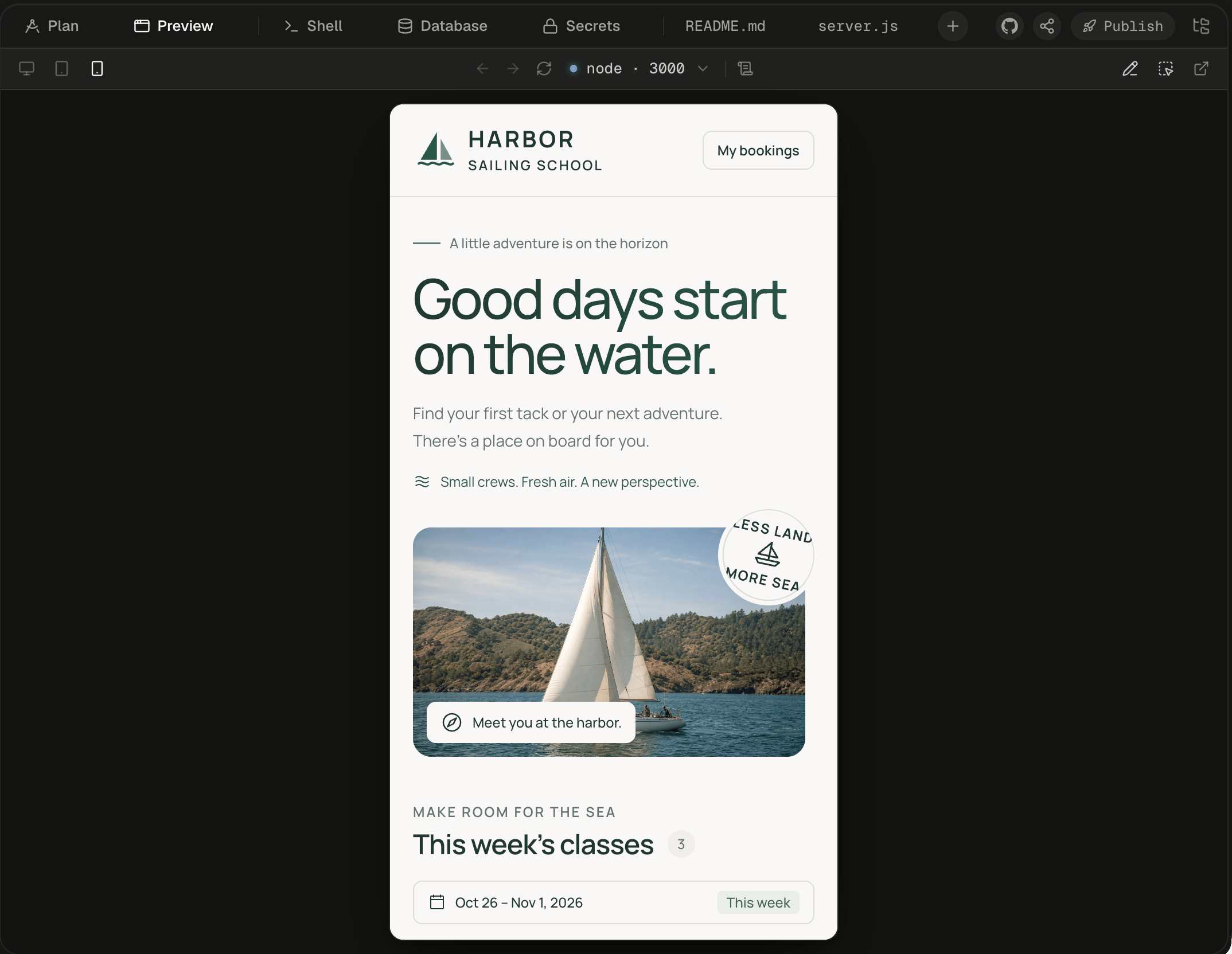
Mobile narrows the frame, and the app's phone layout takes over.
Sign in through another site
Sign-in pages such as Google’s refuse to be shown inside another page. So when your app sends the frame to another site, such as a sign-in or a checkout, Alpha opens that site in a window of its own. If you clicked something in the app, the window opens by itself. Otherwise click Continue to that site. Finish there, and the app picks up in the Preview. If the frame ends up on another site’s page anyway, a pill along the bottom says so, such as “weather.example.com is outside the app.”, with Open in new tab and Back to the app. If sign-in keeps looping in the frame, use Open in new tab, where cookies behave as in any browser tab. To add sign-in to your app, see App sign-in.Read the logs
Click Logs to open a panel under the frame. Console shows the app’s browser console and uncaught errors, with a “Page loaded” divider at each load. Beside it is one tab per server the agent started, showing that server’s log.
Drag the panel’s top edge to resize it, up to 70% of the Preview’s height. With the edge focused, ↑ and ↓ resize it too. People you share the session with see Console only.
What happens while the machine wakes?
A machine sleeps once you’ve been away for about 30 minutes, and opening the session wakes it. See Sleep, wake and reset. Grey placeholder bars cover the frame until the app is back, usually within seconds. Where your Alpha keeps saved copies, the Preview doesn’t wait. It shows the app at once from a copy taken as the machine went to sleep, with a note along the bottom. When the live app is ready, it fades in at the same address and scroll position, without a reload. Edit waits for the live page. The copy holds only what your app shows a visitor who isn’t signed in. A signed-in page is never saved, so it can’t reach anyone else. If you’re signed in to your app, you see the signed-out copy until the live app takes over.If you don’t see a saved copy while a machine wakes, it isn’t turned on for your Alpha. The Preview waits for the live app instead.
Why does the Preview show a message?
The frame, or a preview address opened in its own tab, says why there’s no app. Most fixes are one sentence to the agent. More are in Troubleshooting and FAQ.Next steps
Point at and draw on your app
Click a button in the Preview and the agent gets its selector, its styles and, where it can tell, its source file.
Add sign-in to your app
Turn on sign-in for your app and see who has signed up in the Auth tab.
Sleep, wake and reset
What keeps the machine awake, and what to do if it won’t come back.
Publish your app
Give the app a permanent address that doesn’t depend on the session’s machine.