

/workspace folder on the session’s machine: the code the agent writes, the files you upload and the documents it makes for you. Click any file to open it as a tab. How each kind of file looks once it’s open is on File viewers, and attaching files to a message is on The composer.
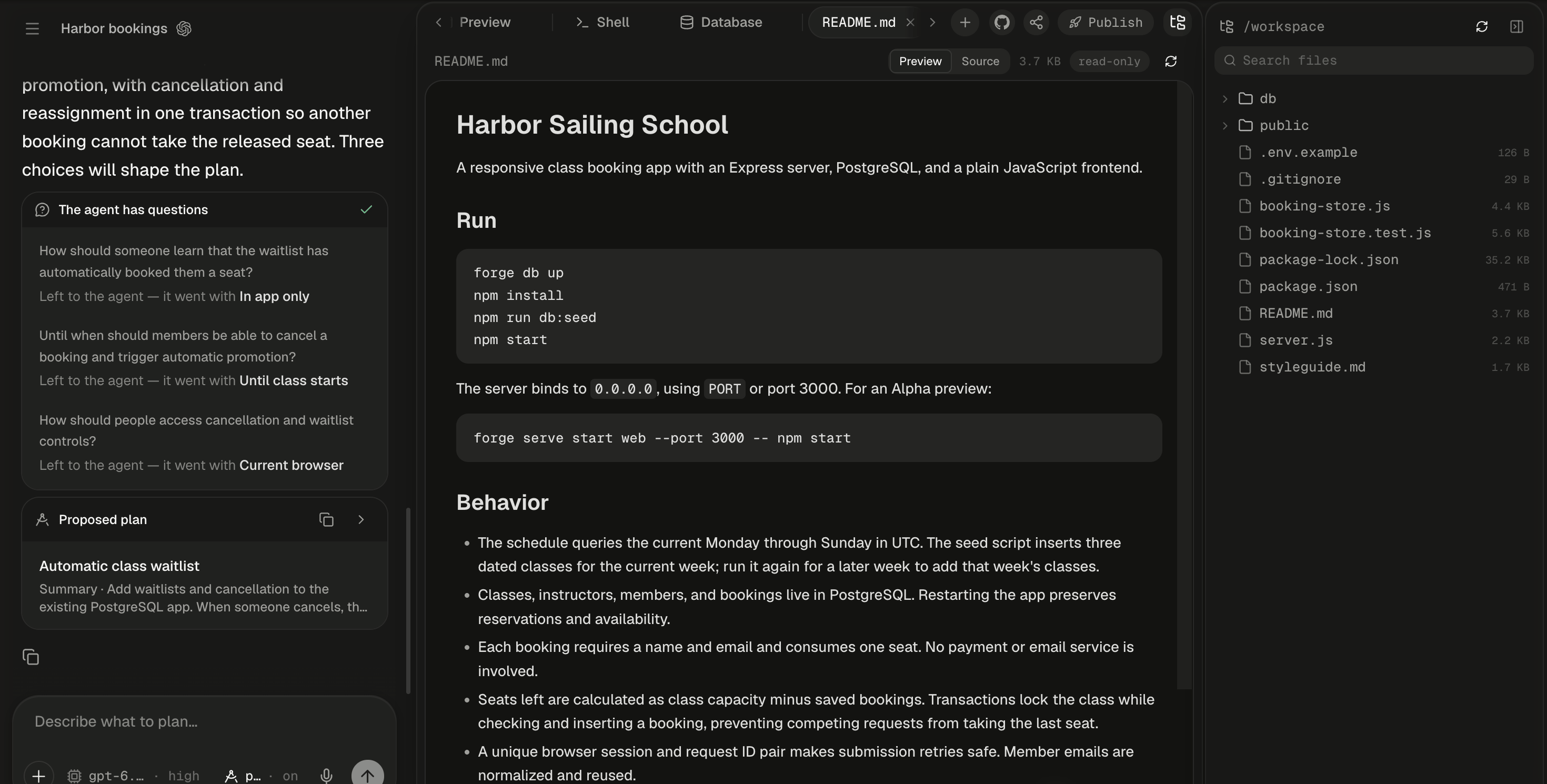
The files panel opens along the right edge. Sizes sit at the end of each file's row.
Open the files panel
Click the folder button (Show files) at the top right of the workspace, or in the chat header while there’s no workspace yet. Drag the panel’s divider to widen it, and click Hide files to put it away. The tree keeps up with the agent by itself, every few seconds while a turn runs. Refresh files re-reads it at once.
Opening the panel on a sleeping session wakes its machine. The tree hides dependency and build folders:
.git, node_modules, .venv, .venvs, __pycache__, .next, dist, .cache and .npm. Other hidden files, such as .env, do show. Below the top level, the tree lists at most 5,000 entries.
Find a file
Type part of a name or path into Search files, and the tree turns into a list of matching files by full path, best match first.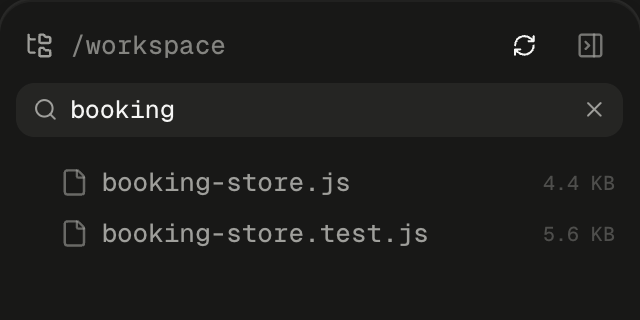
Typing in Search files swaps the tree for a list of matching files.
Search shows at most 200 results, so add a folder name to narrow a long list. It runs in your browser and never wakes the machine.
Open a file or mention it
Click a file to open it as a tab in the viewer that fits it. The row’s icon tells you which: slides for decks, a grid for spreadsheets, a ruler and pencil for drawings. Hover a tab for the file’s full path. Close it with its X or a middle-click. To point the agent at a file, drag its row into the composer. Alpha inserts@path where you drop it, and a folder arrives as @path/. Typing @ in the composer finds the same files.
Which files open by themselves?
Your app’s code never opens by itself: the Preview is where you see an app. A turn that writes more than 40 files counts as a project, and Alpha stops looking for a file to open. If you close a file Alpha opened because you asked for it, it doesn’t open by itself again in that session, in this browser.
If files you ask for never open by themselves, that feature isn’t turned on for your Alpha. Everything else on this page works without it.
Bring your own files in
Click + (Add Attachment) in the composer, or drag files from your computer onto it. Each file uploads as soon as you attach it, not when you send, into/workspace/uploads/, where it shows in the tree and the agent can read it. Alpha cleans up each name first:
Each file can be up to 256 MB per file (default), and images up to 15 MB also reach the model as pictures. Removing an attachment before you send deletes it from the machine. Attach files covers progress and upload errors.
Download what the agent made
Right-click a row: a file offers Download, a folder Download folder (.tar.gz). The item reads “Downloading…” until the file arrives. If the download is refused, the menu stays open with the reason.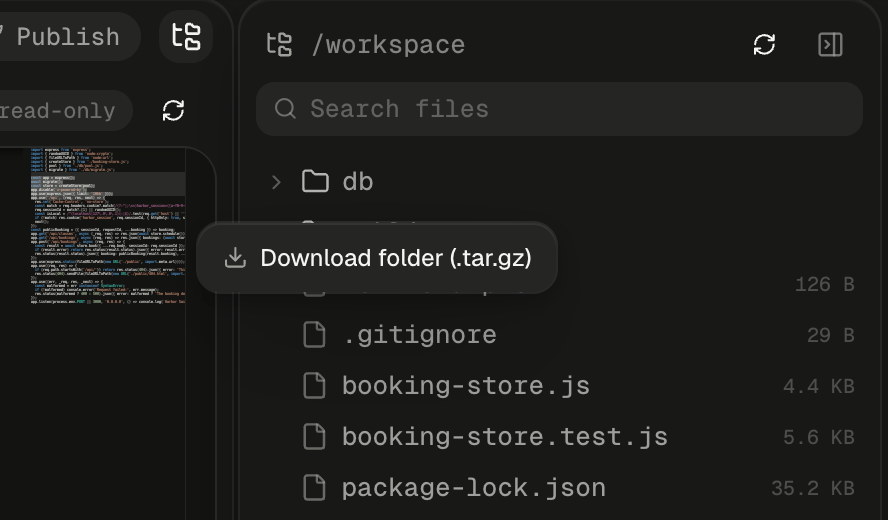
Right-click a folder to download it as one .tar.gz archive.
An archive keeps
.git and dist, which the tree hides. There’s no one-click download of the whole workspace, so download its top-level folders or push it to GitHub. An open PDF, image, drawing or Office document also has a Download the file button.
Viewers of a shared session can download files but not folders. Their copy of a file has the owner’s secret values replaced with [redacted], which an archive can’t do. While the owner is away, a viewer can’t wake a sleeping machine, so a download fails with “this session’s machine is asleep while its owner is away”.
Why can’t I edit files here?
The workspace is the agent’s, so every file opens read-only. A file tab’s header carries a read-only chip (“The agent owns the workspace files — the editor is read-only”), and typing in the editor shows “Read-only — ask the agent to change files”.Next steps
File viewers
What PDFs, spreadsheets, decks, drawings and code look like once a tab is open.
Point at and draw on your app
Turn a selection, an element or a sketch into context for your next message.
Slides, drawings and diagrams
Ask for a deck or a diagram and export it as PowerPoint, PDF or PNG.
Limits
Every upload, download and session limit in one table.