

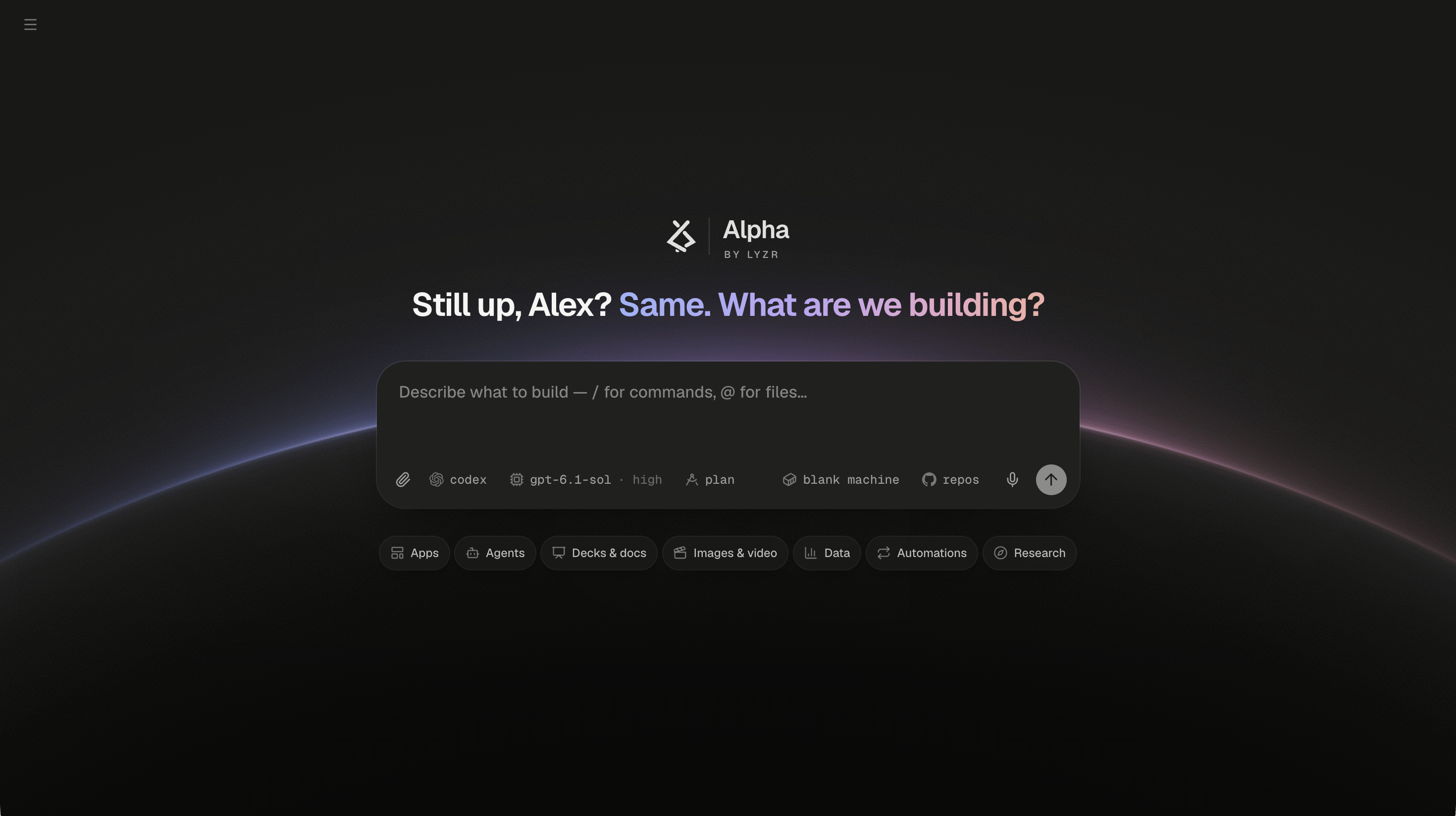
The home screen: a greeting, one composer, and seven ways to start.
Open the home screen
Alpha opens on the home screen. To come back to it from a session, do one of these:
Opening the home screen creates nothing, so you can leave it again without a stray empty session in your list. The composer has focus from the start.
Set up the next session
The chips in the composer’s bottom row set up the session your next prompt will start. The agent, model and plan chips sit on the left. On the right, before Send, are the machine and the repositories.
What runs is on the left; where it runs is on the right.
The repositories are deliberately not remembered. That way a repo you picked for one task can’t end up in an unrelated session later. If you connect GitHub from the Repositories popover, Alpha takes you to github.com and back, and your typed prompt, staged repos and name are all still there. Connect GitHub and add repositories covers the popover in full. Choose the agent and model explains the models and efforts.
There’s no permissions chip. Every new session runs with full access inside its own machine. The agent installs packages and runs commands without asking, and nothing it does reaches your other sessions. If you type
/permissions, Alpha answers in a banner: “/permissions isn’t offered — every session runs with full access.”
If you don’t see the agent chip or the microphone, your Alpha isn’t set up to offer both agents or voice input. Without the agent chip, sessions run the one agent your Alpha provides.
Start from a suggestion
The seven chips under the composer are starting points: Apps, Agents, Decks & docs, Images & video, Data, Automations and Research. Click one and its list opens over the row, so the page doesn’t move. Each row is a short line such as “Take bookings for my small business” or “Get a morning digest of AI news”.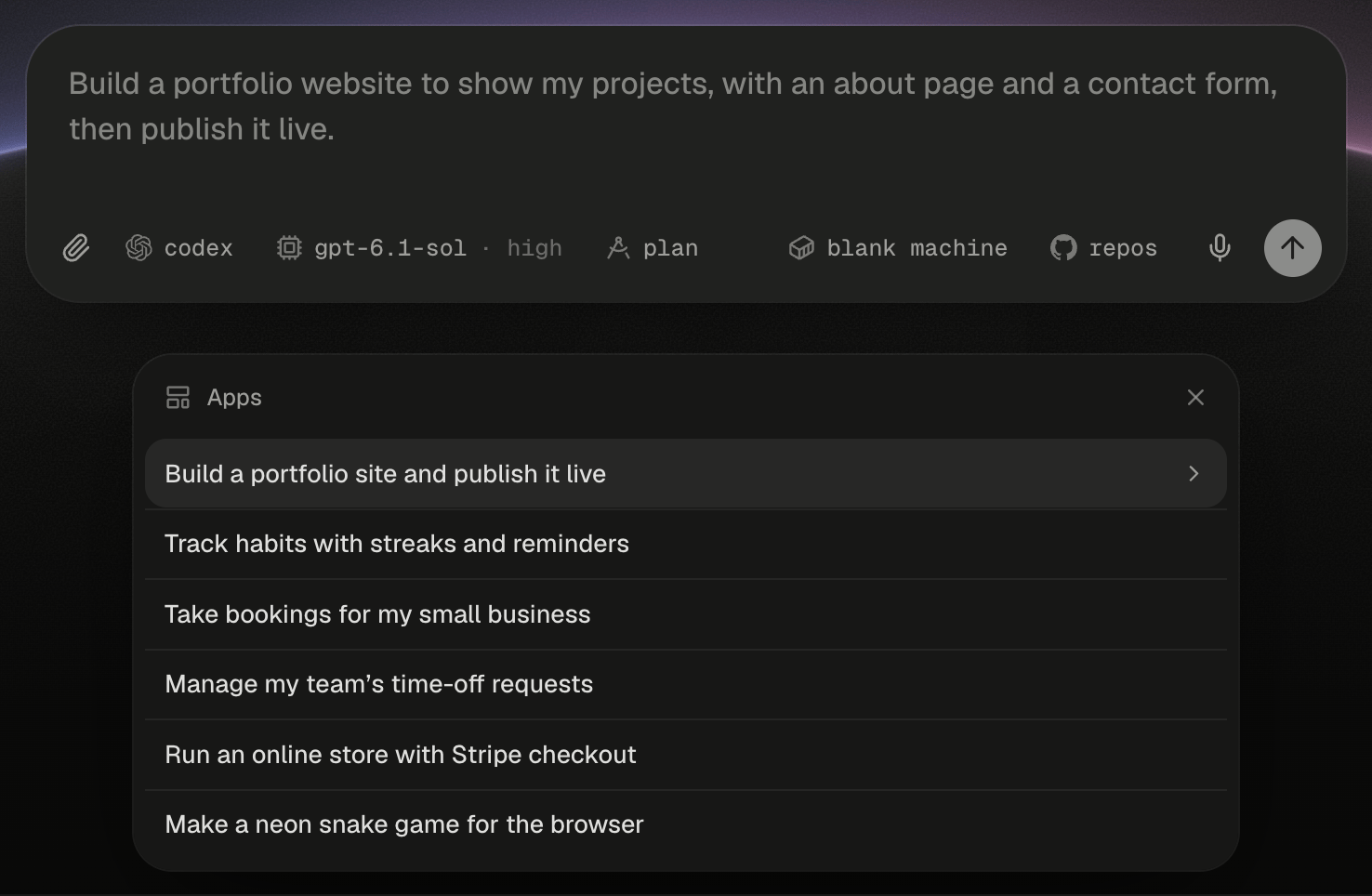
The Apps list opens where the chip row was, and the highlighted row's prompt previews in the composer.
A suggestion is a first draft. Edit it to match your project before you send it, for example by naming your sailing school and its class types.
Use commands before the session exists
Type/ in the home composer to open the same command palette you get inside a session. Here it acts on the session about to start. Most commands change a chip. A few start the session at once, with the command as its first message.
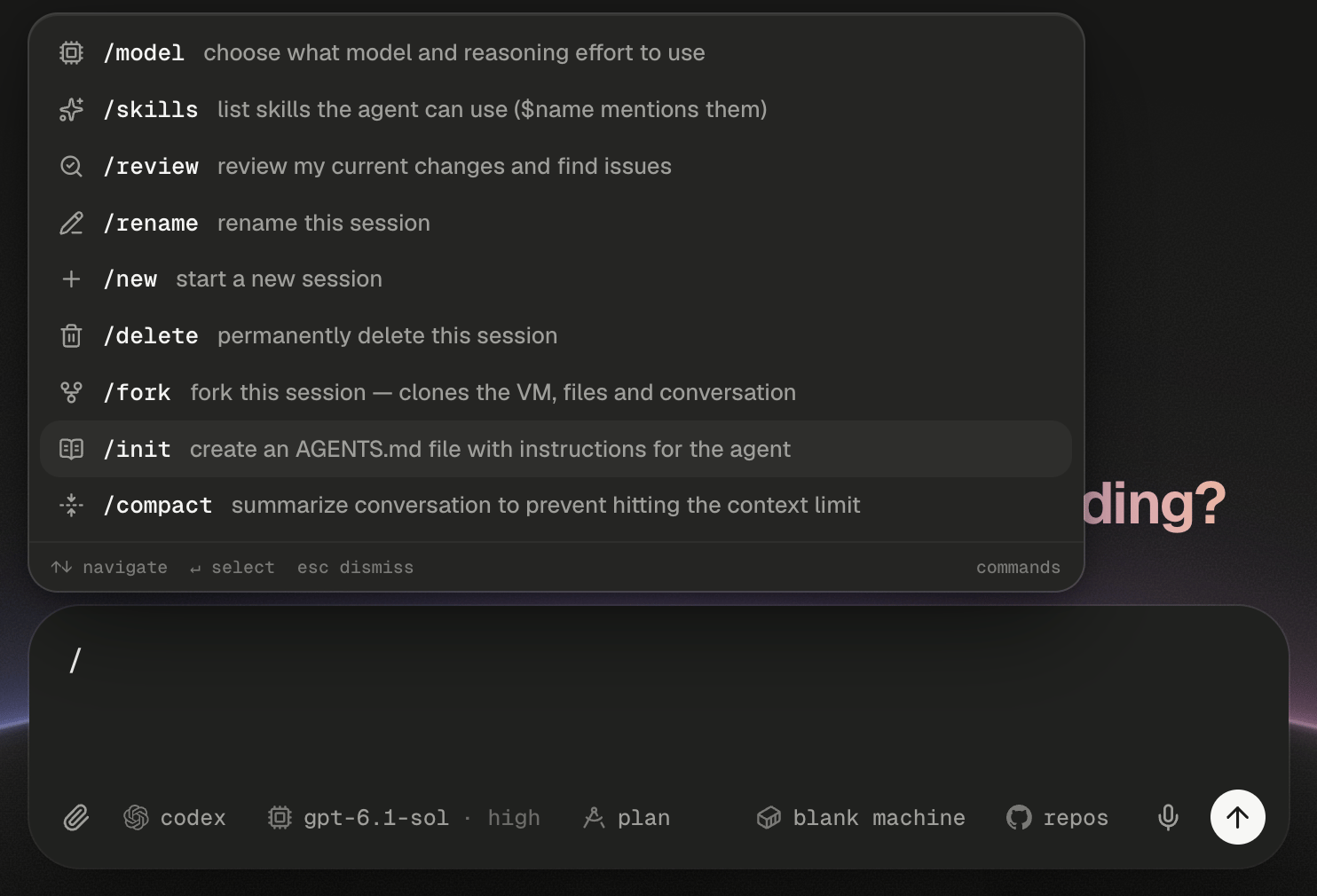
The palette on the home screen acts on the next session.
With a repository staged,
/review against main or /init is a complete first message. You don’t need a prompt as well. In a Claude Code draft, Claude Code’s own commands and your skills also start the session at once.
Commands that need a running session say so instead of doing anything:
The Next session card lists Name, Agent, Model, Permissions, Mode, Setup, Repos, Files, GitHub, Integrations and Secrets. The Agent row appears only when your Alpha offers both agents. Its footer reads “The session your next prompt starts. Nothing is running yet; token usage appears once it is.” Each card closes with the × in its corner. Every command is listed in Slash commands.
Mention files and skills before the session exists
The workspace doesn’t exist yet, so@ and $ list what it will start with.
Picking a file inserts
@path, so the agent knows exactly which file you mean from its first turn. The composer page covers mentions inside a running session, including @session: for your other sessions. Skills explains what a skill adds.
What happens to my unsent prompt?
Alpha keeps your unsent text in this browser, so a reload or a closed tab loses nothing you typed.Next steps
What happens when you start a session
The boot status lines, how the session gets its name, and what to do if the first send fails.
Setups: ready-made machines
Save a machine with your repositories cloned and installed, then pick it from the setup chip.
Choose the agent and model
How Codex and Claude Code differ, what each effort costs, and when ultracode is worth it.
Prompt Alpha well
Turn a suggestion into a first prompt that names the outcome and how to check it.