

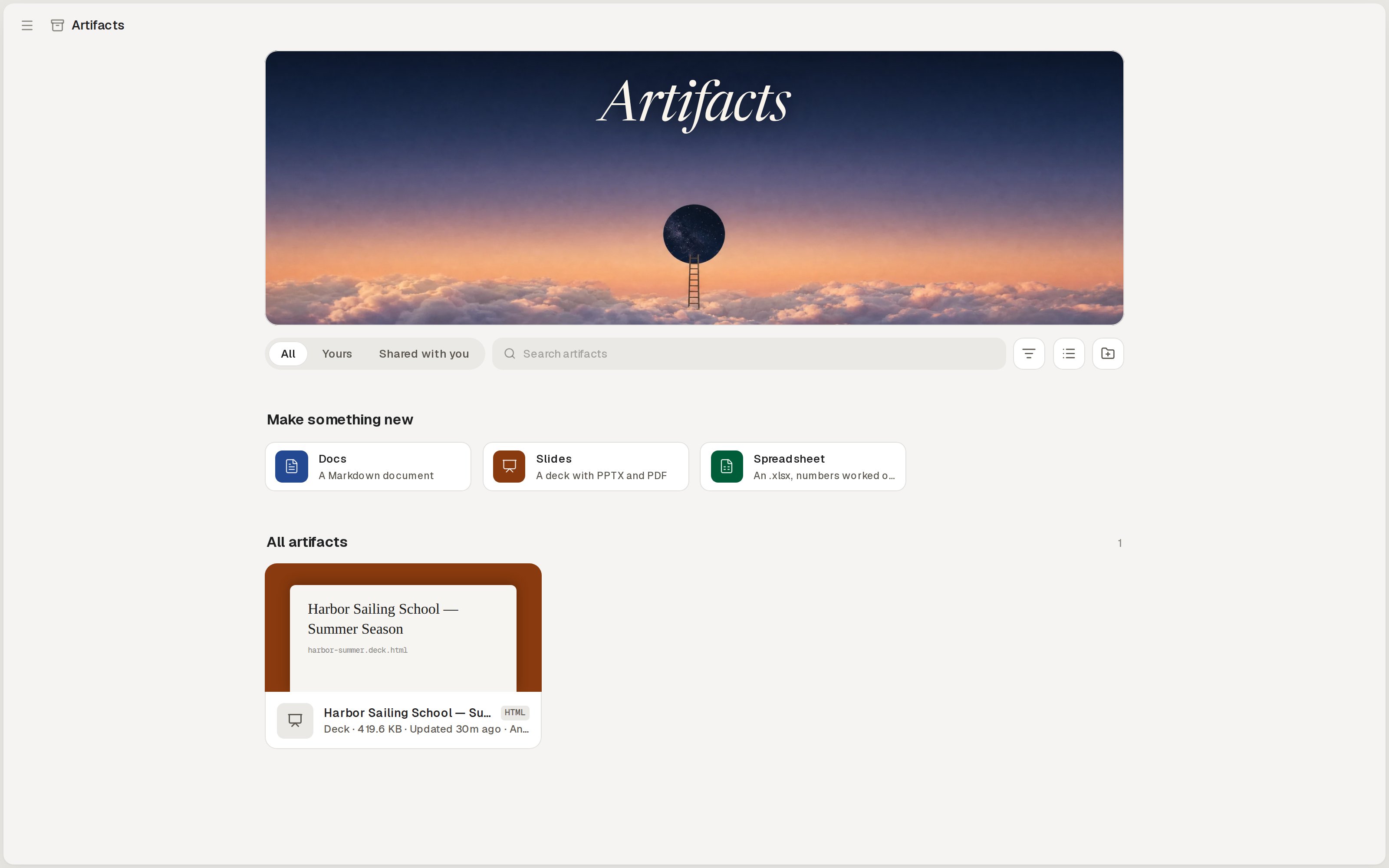
Your artifacts and the ones shared with you, in one place.
When should I use an artifact?
An artifact, a shared session and a published app each give people a link, but each link shows something different.
Sharing a session never shares its artifacts, and sharing an artifact never shares its session.
Publish a file as an artifact
Any file in the workspace can become an artifact, including a file you uploaded. A file is published once. After that you change it through the agent (see Change an artifact).From the file’s tab
When a file’s tab is in front, the pill at the top right of the workspace reads Publish as artifact instead of Publish. Only the session’s owner sees it.1
Open the file
Click the file in the file tree, or a link to it in the transcript. The first time a file tab opens in your browser, a hint under the pill asks “Want to keep this file?” and explains: “Publish it as an artifact: it gets a link of its own to share, and stays after the session ends.” Click Got it to dismiss it for good.
2
Click Publish as artifact
The pill sends “Publish docs/fleet-report.md as an artifact.” to the agent, with your file’s path. If the agent is busy, the message waits in the queue, so you can publish several files one after another.
3
Get the link
The agent saves the file and replies with the artifact’s link. When the turn ends, the pill becomes the Artifact menu.
The Artifact menu shows the artifact’s title and “Published ·” followed by who can open it: “Only you”, “Anyone with the link”, or a number of people.
A file the workspace holds only because you tagged an artifact (in the
artifacts folder) has no pill. It’s that artifact already.
By asking the agent
Say what to keep, in any session. The agent understands “save this as an artifact”, “keep this”, “publish this file” and “share this file”, and “publish the attached image” for an upload.The transcript doesn’t show a card yet when an artifact is saved, shared or deleted, and a save doesn’t open the file beside the transcript. The artifact is saved and its link works: open it from the link in the agent’s reply or from the Artifacts page.
What gets saved with a file?
Alpha copies the file out of the session’s machine when it’s saved, so the artifact never needs that machine again. Some files bring others with them:
Making a deck’s exports or a LaTeX PDF takes a while, so the save waits for them. Links to other websites stay links. Everything an artifact holds counts toward its size; see How big can an artifact be?.
Deleting the session a file came from doesn’t delete its artifact. The artifact only loses its “from” link to the session.
Change an artifact
An artifact keeps the files it was saved with. Editing the file in the session doesn’t change the artifact until you ask the agent to update it.Find your artifacts on the Artifacts page
Click Artifacts in the sidebar, below Published. The page has three tabs:
Search artifacts matches titles and file names, and folder titles. The buttons beside the search box:
Below them, Make something new offers Docs (“A Markdown document”), Slides (“A deck with PPTX and PDF”) and Spreadsheet (“An .xlsx, numbers worked out”). Each starts a new session with a request begun in the composer, such as “Make a slide deck, publish it as an artifact, and make it about ”, for you to finish.
Then come the shelves: Folders, Pinned (your pinned artifacts, kept above the rest), and All artifacts, Yours or Shared with you, each with a count.
What a card shows
A card shows the artifact’s kind in colour with its title, or the picture itself for an image. Under it are the title, the file’s extension, and a line of details:- Your own: the kind, the size, when it was updated, who can open it (for example “Anyone with the link”, or “2 people via its folder”), how many times others opened it, and “from” the session it came from. Click the session’s name to open it with the artifact tagged in the composer.
- Shared with you: who shared it, the kind, the size and when it was updated.
The card menu
Open it with the ⋯ button on a card, or right-click the card.
On an artifact shared with you, the menu has only Duplicate, Copy link and Download.
Drag a card
Drag one of your cards onto a folder to move it there; a folder that already holds it says “Already in this folder”. While you drag, a pill at the bottom of the page reads Drop here to pin (or Drop here to unpin): drop the card on it to pin or unpin it.Open an artifact
Click a card, or open an artifact’s link. Signed in to Alpha, the artifact opens inside Alpha beside the sidebar. Signed out, it opens on a page of its own, if its sharing lets you in. One bar runs across the top of the artifact: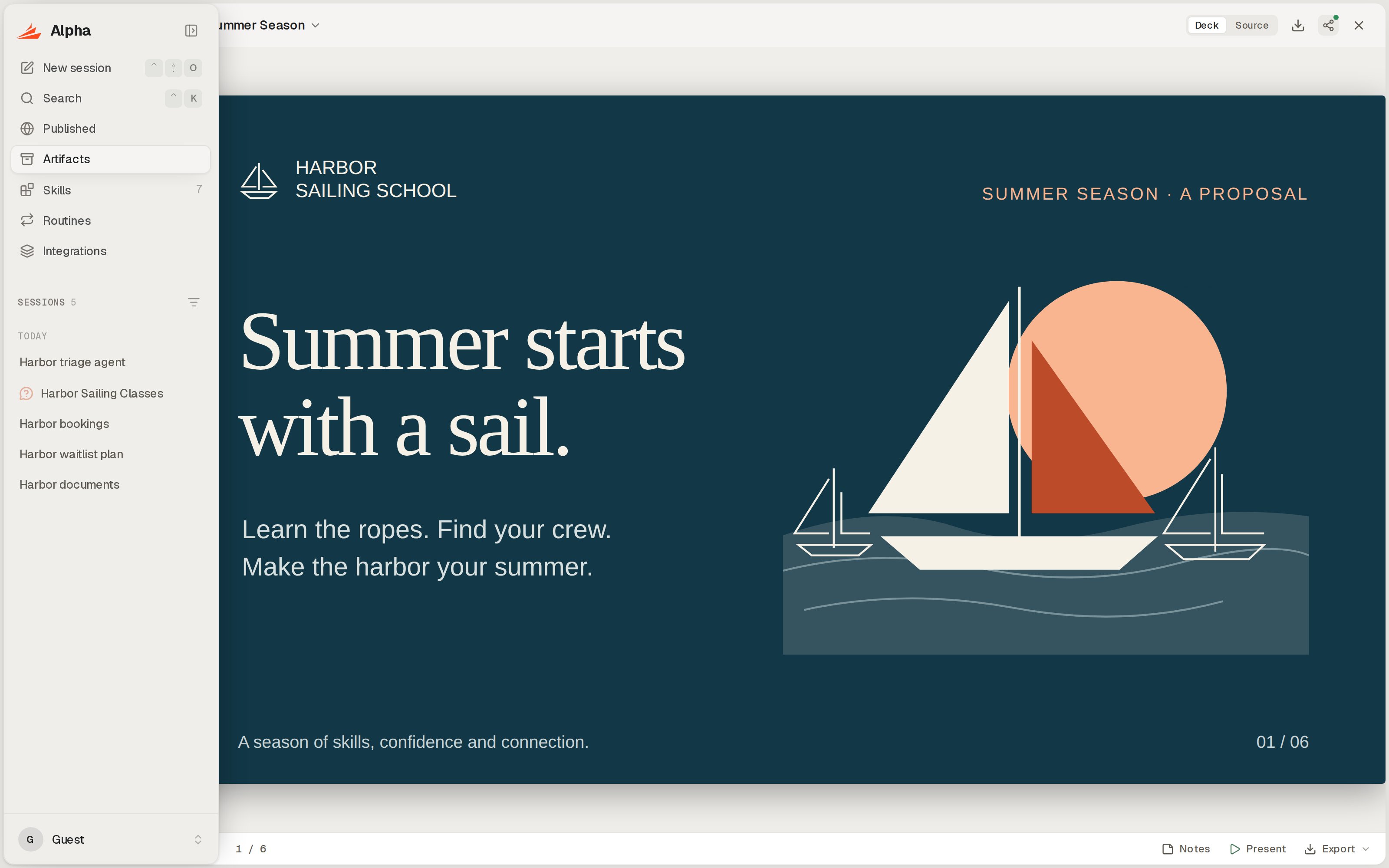
An artifact opens on its own page, in the same viewer as the workspace.
The title menu starts with the kind and who made it (“Deck by you”), the session it came from, when it was updated, and its size, number of files and opens. Then:
Artifacts open in the same viewers as the workspace: PDFs, Word, Excel and PowerPoint files, images, drawings and diagrams, decks, HTML pages, Markdown, a LaTeX file’s PDF, and code. See File viewers. They’re read-only here; a deck’s owner can still export it. Anyone but you sees your secret values masked as
[redacted] in text files, as viewers of a shared session do.
On its own page, the bar starts with the Alpha logo and ends with All artifacts for the owner, or “shared with you” for anyone else.
When an artifact won’t open
Each full-page card has an Open your own Alpha button.
Organize artifacts in folders
A folder groups artifacts and shares them together. Click New folder on the Artifacts page, type a name and click Create. Or ask the agent to save a file into a folder by name. Put artifacts in a folder with the card menu’s Move to folder, or by dragging a card onto it. An artifact sits in one folder at most, and folders don’t hold other folders. A folder card shows its title, how many artifacts it holds, and who can open it (or “shared by” and the owner’s name). Its ⋯ menu has Rename, Copy link, Share and Delete folder; a folder shared with you has only Copy link. Click a folder to open its page: its artifacts as cards, with Share (or “shared by” and the owner’s name) and Close at the top. Artifacts you open from there close back to the folder. To take one out, drag its card onto Drop here to remove from folder, or pick Move to folder → No folder on the Artifacts page.Share an artifact or a folder
Only the owner shares. Click Share on the artifact’s page, Share… in the Artifact menu, or Share in a card’s or folder’s menu. The dialog is titled with the artifact’s or folder’s name, and every change applies at once, with a “Sharing saved” message.1
Invite people by email
Type an address into Add people by email, then Enter and press Enter. You can invite up to 20 people, and they must use that email to sign in to Alpha. Under People with access you’re listed as Owner and each person as Viewer; click Remove (×) to take someone off.
2
Pick the general access
Under General access, pick Only people invited or Anyone with the link. Anyone with the link doesn’t need an Alpha account. The two don’t combine: picking Anyone with the link clears the invite list, and inviting someone switches back to Only people invited.
3
Copy the link
The line at the bottom says who can open it, for example “Only you and the 2 people invited can open it.” or, for a folder, “Anyone with the link can open everything in it.” Click Copy link. While only you can open it, the button reads Copy private link.
On an Alpha without accounts, the email field reads “Inviting people needs accounts — this server runs in guest mode”. Share by link instead.
Artifacts shared with your email appear under Shared with you on the Artifacts page, not in the sidebar’s list of shared sessions. Admins of your Alpha can open any artifact by its link.
You can also ask the agent: “share the fleet report with priya@example.com”, “make it public” or “make it private”.
Tag an artifact in a message
Type@artifact: in the composer, then words from the title or file name, and pick an artifact from the list (your own and those shared with you). Typing @art also offers @artifact: (“Tag one of your artifacts”). The tag shows as a badge with the artifact’s title. Pasting an artifact’s link into a message works the same way.
Before the turn starts, Alpha copies the artifact’s files into the session’s workspace, under artifacts/ and the artifact’s code, and tells the agent whether the artifact is yours or shared with you. Each message that tags it copies it afresh, so the agent always reads the current version. See Mention files, sessions and skills for the other mentions.
Open artifact links in the transcript
When the agent links an artifact, the link shows as a badge with its title. Click it to open it beside the transcript:- An artifact saved from this session opens its file in the workspace.
- Any other artifact opens as the artifact itself.
- One that was deleted, or isn’t shared with you, says “This artifact was deleted, or it isn’t shared with you.”
Delete an artifact
Pick Delete in a card’s menu or the Artifact menu, or Delete artifact in the title menu, and confirm “Delete “Fleet report 2026”?” (“Its link stops working for everyone.”). You can also ask the agent to delete it. The file in the session stays; only the artifact and its link go, and deleting can’t be undone.How big can an artifact be?
When you reach a limit, the agent says the save was refused. Delete artifacts you no longer need to make room. See Limits.
Next steps
Share a session
Let people watch the whole session live, read-only, instead of one file.
File viewers
What each viewer does with PDFs, Office files, images, Markdown and code.
The composer
Mention files, sessions and artifacts, and attach files to a message.
Limits
Every size and count limit in one table.